
333
How to Build a Website With WordPress: Step by Step
WordPress lets you build a website without programming skills. You pick a theme, add the features you need with plugins and edit pages in a visual editor. The software is free, and you can run it on WordPress.com or on your own hosting.
This guide shows how to make a WordPress website step by step: choosing hosting and a domain, installing WordPress, setting up a theme and plugins, creating pages and a menu, and promoting the site once it is live. If you are new to the platform, start with our overview of what WordPress is and how to use it.
Choose Web Hosting and a Domain Name
Every website needs a domain, the address visitors type into the browser, and hosting, the server where the site’s files live.
With WordPress you have two routes. WordPress.com is a hosted service: you sign up, and hosting, updates and security are handled for you. WordPress.org gives you the same software to install on hosting you choose yourself, which is what most business websites use. The table compares the two.
| What to compare | WordPress.com | WordPress.org (self-hosted) |
| Cost | A free plan and several paid plans | The software is free; you pay for hosting, the domain and any premium themes or plugins |
| Domain | The free plan uses an address like yoursite.wordpress.com; paid plans let you use your own domain | You register your own domain, for example yourbusiness.co.uk, and point it to your host |
| Themes | A choice of themes from the WordPress.com library | Any free theme from the WordPress.org directory, or a premium or custom theme |
| Plugins | Not available on the free plan; installing plugins needs a paid plan | Any plugin you choose |
| Advertising | Free sites show WordPress.com ads to visitors | No ads unless you add them |
| Maintenance | Updates, backups and security are handled by WordPress.com | You, your host or your developer look after updates, backups and security |
| Support | Help pages and forums; more support on paid plans | Community forums and documentation, plus your host’s support |
The free WordPress.com plan works for a personal blog or a test. For a business website, a paid plan or self-hosted WordPress gives you your own domain, no ads and more control, which also looks more trustworthy to visitors. The table reflects WordPress.com plans as of October 2026; features change, so check the current details on the WordPress.com support pages.
If you choose self-hosted WordPress, pick a host that meets the official WordPress requirements: as of October 2026, WordPress recommends PHP 8.3 or later, MySQL 8.0 or MariaDB 10.11 or later, and HTTPS support. Most hosts install WordPress for you in one click. You can also download it from WordPress.org and run the installer yourself, which usually takes a few minutes. Then point your domain to the host by updating its DNS records.

Find and Install a WordPress Theme
A theme controls the layout and look of your website. The WordPress.org directory has thousands of free WordPress themes. Simple, lightweight themes load quickly and need little set-up, so they are a good start for a small business site. To install a free theme:
- Log in to your WordPress dashboard.
- Go to Appearance > Themes.
- Click “Add New Theme”.
- Browse or search the directory and preview the themes you like.
- Click “Install”, then “Activate”.
For a more distinctive design, you can buy a premium theme from a marketplace such as ThemeForest or StudioPress. Premium themes come as a zip file. To add one:
- Go to Appearance > Themes and click “Add New Theme”.
- Click “Upload Theme”.
- Choose the zip file on your computer.
- Click “Install Now”.
- Activate the theme.
Then customise it. With a block theme, open Appearance > Editor (the Site Editor) to change colours, fonts, spacing, the header and the footer; the Site Editor documentation explains each part. Classic themes have their own customisation screen in the Appearance menu. Both let you add your own CSS if you need finer changes.
Install the Plugins You Need
Plugins add features to WordPress: contact forms, SEO settings, caching, security, backups and much more. You do not need to code to use them. On self-hosted WordPress you can install any plugin; on WordPress.com, plugins need a paid plan. To install one:
- In the dashboard, go to Plugins > Add New Plugin.
- Search for the plugin by name or feature.
- Click “Install Now”.
- Click “Activate” and go through the plugin’s settings.
Install only the plugins you need. Each one adds code that has to be kept up to date, and poorly built or overlapping plugins slow the site down or conflict with each other. Before you install, check the last update date, the number of active installations and the reviews. Some widely used WordPress plugins are:
| Category | Name | What it does |
| Page building | Beaver Builder | A drag-and-drop builder for page layouts, with templates and custom CSS options |
| Elementor | A visual builder for adding and moving elements, editing the design and adding widgets, with a library of templates | |
| Performance | W3 Total Cache | Stores ready copies of pages in the cache and combines files so pages load faster |
| SEO | Yoast SEO | Lets you edit page titles and meta descriptions, creates an XML sitemap and checks the readability of your text |
| All in One SEO | A similar set of tools: titles, meta descriptions, sitemaps and structured data | |
| Security | Kadence Security (formerly iThemes Security) | Login protection, two-factor authentication and checks for known vulnerabilities |
Configure the Basic Settings
Next, set up the basics. Most of them are in the Settings menu of the dashboard; the logo and site icon depend on your theme. The main settings are:
| Setting | What it is for |
| Site Title (Settings > General) | The name of your website, usually your business name. It appears in browser tabs and in many themes’ headers |
| Tagline (Settings > General) | A short phrase about what you do, for example “Family-run bakery in Witney” |
| Logo (Site Editor or the theme options in Appearance) | Your brand logo, shown in the header on every page |
| Site Icon (Site Editor or the theme options in Appearance) | The small image, or favicon, that helps visitors find your tab among others in the browser |
| Your homepage displays (Settings > Reading) | Choose a static page as the homepage, which suits most business websites, or a list of your latest posts |
| Posts page (Settings > Reading) | The page where your blog posts or news appear, newest first |
| Permalinks (Settings > Permalinks) | The format of your page addresses. “Post name” gives short, readable URLs that are good for visitors and SEO |
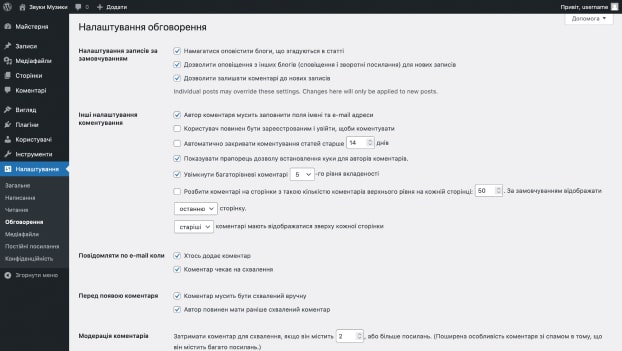
Also check Settings > Reading before launch: the “Discourage search engines from indexing this site” box should be unticked, or Google may not show your website.
Design Your Homepage and Add Pages
The homepage is often the first page visitors see, so it should say clearly what you do, for whom and how to get in touch. Open it from Pages > All Pages and edit it in the block editor. The List View button at the top of the editor shows every block on the page, which makes it easy to find and move sections. The header and footer, with your menu and contact details, appear on every page; in a block theme you edit them as template parts in the Site Editor.
To change text, click on it and type. To replace an image, select the image block and upload your own. Add new blocks with the “+” button, and save or update the page when you are done.
Then create the other pages. Plan the structure in advance, so you know which pages you need and how they link together. To add a page:
- Go to Pages in the dashboard menu.
- Click “Add New Page”.
- Add a title and content, then click “Publish”.
You can return to any page later through Pages > All Pages. Page builder plugins add more layout options if the block editor is not enough.
Set Up Your Menu
Simple navigation helps visitors find what they need, so plan the main menu carefully and add the pages you have created. How you do it depends on the theme.
With a block theme, the menu is a Navigation block: open Appearance > Editor, select Navigation, then add, remove and drag pages into order. With a classic theme, follow these steps:
- Log in to your WordPress dashboard.
- Go to Appearance > Menus.
- Create a menu and add pages from the list on the left.
- Drag the items to change their order, or move an item slightly to the right to make it a sub-item.
- Under Menu Settings > Display location, tick the location where the menu should appear, for example the main or primary menu.
- Click “Save Menu”.
The WordPress menus documentation explains both options.
Link Your Social Media Profiles
If your business has social media profiles, link to them from the website so visitors can follow you and see recent work. In most block themes, add the Social Icons block to the header or footer and enter the address of each profile.

Promote Your WordPress Website
Building the website is the first half of the job; next, people need to find it. Connect Google Analytics 4 and Google Search Console so you can see where visitors come from, then:
- add your website address to your email signature, invoices, vans and printed materials;
- keep active profiles on the social networks your customers use;
- run paid campaigns in Google Ads, Microsoft Advertising, Meta Ads or LinkedIn Ads; our team can set up and manage PPC campaigns if you prefer;
- send email newsletters with links to new pages and offers to people who have agreed to receive them;
- work with bloggers and websites in your field.
SEO makes all of this work harder: pages built around real searches, good titles and descriptions, and a fast website keep bringing visitors after the ads stop. If you want specialists to handle it, see our WordPress SEO services, or ask about WordPress website development if you would like the whole site built for you.
FAQ
How many plugins is too many?
There is no fixed number. A few poorly built plugins can slow a site more than many well-made ones. Install only what you need, choose plugins that are updated regularly and delete any you no longer use.
What should I write on my website blog?
It depends on your business and your customers. Answer the questions people ask you before they buy, explain your services, share news and show recent projects. Useful articles also help your website appear in more searches.
Can I move a WordPress.com site to self-hosted WordPress later?
Yes. You can export your content from WordPress.com and import it into a self-hosted WordPress site, then point your domain to the new host. We explain the steps of a move in our guide on transferring a website to another CMS, hosting or domain.
Which free WordPress themes are popular?
Astra, Neve and OceanWP are widely used free themes in the WordPress.org directory. They are simple and flexible and work well with page builders. The default theme that comes with WordPress is also a solid starting point.