
A website backup is a complete copy of everything needed to rebuild a website: its files, its database and its settings, saved at a point in time and stored away from the live server. If the site is hacked, broken by an update, deleted by mistake or lost with a failing server, the backup lets you put it back as it was on the day the copy was made.
What a website backup has to include
A website is more than the pages you see. Most business sites have two parts, and a backup is only useful if it covers both.
- The files. The code, the theme, plugins or modules, and everything uploaded through the admin panel: images, PDFs, product photos. The WordPress backup guide lists the core software, themes, plugins, uploads and configuration files such as wp-config.php and .htaccess.
- The database. The text of pages and posts, products and prices, orders, users, form entries and most settings. On a WordPress or Laravel site this is where the content changes every day.
A copy of the files without the database restores an empty shell. A copy of the database without the uploads restores pages with missing images. Custom applications also have configuration and secret keys that live outside the code, and these need storing somewhere safe, with access limited to the people who need them.
Why backups matter to a business
The National Cyber Security Centre’s guidance on backing up your data lists your website among the data a business needs to operate, and names ransomware as one way of losing access to it. Other common causes are a plugin update that breaks the site, a hosting account that is suspended or closed, and a page or product range deleted by mistake.
If your site stores personal data, such as enquiries, bookings or customer accounts, backups are also part of UK GDPR security. Article 32 of the UK GDPR expects appropriate measures, including the ability to restore the availability of and access to personal data in a timely manner after a physical or technical incident, and a process for regularly testing those measures.
How often to back up
Match the backup schedule to how much you can afford to lose. The WordPress guide suggests weekly backups for smaller sites with fewer posts, daily backups for busy ones, and a backup before every upgrade.
In practice:
- A brochure site for a solicitor, updated a few times a month: a weekly backup plus one before each update is usually enough.
- An online shop taking orders every day: at least a daily database backup, because a weekly one could lose six days of orders and customer accounts.
- A booking or membership site: as often as the data changes, and always before releases.
Where to keep backups
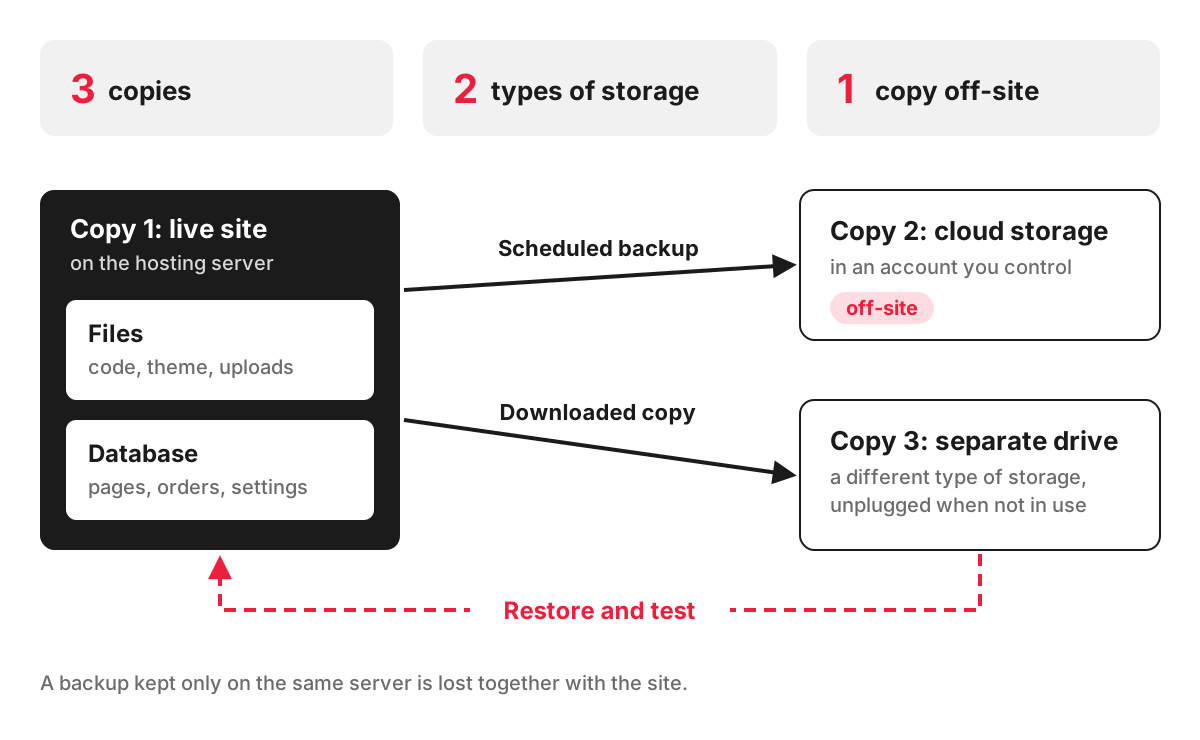
A backup kept only on the same server as the site disappears together with the site. The WordPress guide recommends keeping at least three backups, in different places and on different media, and the NCSC suggests combining an online backup with a separate storage device that is not left connected when not in use.
Most hosts back up their servers, and that is a useful extra layer. The WordPress guide points out that getting a copy back from the host can take time, though, and a host’s backup will not help if the hosting account itself is the problem. Keep your own copies as well, in storage the business controls.
A backup is only proven by a restore
The NCSC stresses knowing how to restore a backup and checking that it contains all your important data. Restore a recent backup to a test copy of the site from time to time and click through it: do the pages open, are the images there, do the last orders appear, does the contact form send?
Common backup mistakes
- relying only on the host’s backups, stored on the same infrastructure as the site;
- backing up files but not the database, or the other way round;
- keeping backups that nobody can find the password for;
- never testing a restore until the day it is needed;
- keeping old backups with customer data for years without a reason.
How we handle backups on projects
Every site we launch goes live with a rollback plan, monitoring and backups in place, and with a signed-off launch checklist. A fresh, tested backup matters most when a website migration moves a site to a new platform, because it is the way back if something goes wrong on the day. After launch, our web development team can look after security updates and monitoring as part of ongoing maintenance.
FAQ
What is the 3-2-1 rule for backups?
It is a common rule of thumb: keep three copies of your data, on two different types of storage, with one copy off-site. For a website, that could be the live site, a copy in cloud storage you control and a copy downloaded to a separate drive. It matches the WordPress advice to keep several backups in different places and on different media.
How do I create a website backup?
On WordPress, a backup plugin or your host’s control panel can copy the files and the database and send them to cloud storage on a schedule. On a custom site, your developer sets up automatic database exports and copies of the uploaded files. Hosted platforms such as Shopify run the servers for you, so check what you can export yourself, such as products, customers and orders.
How do I restore a website from a backup?
Put the files back on the server, import the database, and check that the configuration points to the right database and domain. Many backup plugins and hosting panels do this in a few clicks. On a hacked site, find and fix how the attacker got in first, or the restored site can be infected again; our guide on checking a site for viruses covers the signs to look for.
Does my hosting company back up my website?
Many do, but plans differ in how often they back up, how long they keep copies and whether you can restore one yourself. Ask your hosting provider for those three answers in writing, and keep your own copies regardless.