
386
How to Check Your Website for Viruses and Malware
Malicious code can sit on a website for weeks without the owner noticing. It may redirect some visitors to scam pages, add hidden spam pages, steal card details from a checkout form or quietly slow the site down. Everything can look normal when you open the home page yourself. That is why it is worth checking your website for malware regularly, even when it seems to work well.
Most infections come in through outdated CMS software, themes and plugins, weak or reused passwords and poorly configured hosting. Popular platforms and plugins are attacked most often, because one known weakness opens thousands of sites at once. Clean code, a secure hosting setup and regular updates, from the first stage of website development, make an attack much harder.
To find malicious code, a website malware scanner compares your pages and files with databases of known threats, called signatures, and with blocklists of dangerous sites. These tools work differently from the antivirus on your computer: most of them only detect a problem and show where it is. Removing the infected code is usually done by hand or by a security specialist.
How Malware Affects a Website
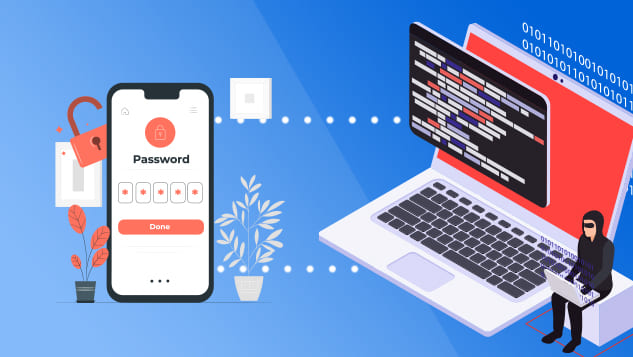
The damage depends on what the attackers want, but it is often serious and expensive to repair. Depending on its type, malicious code on a website can:
- Steal the personal data of your customers: logins, passwords, addresses and card details typed into forms.
- Damage files and code, causing errors and slow pages or breaking parts of the site.
- Add files that spread the infection across the server, replace your pages or content, or create hidden spam pages under your domain.
- Redirect visitors to a fake copy of a site, where they are asked for personal or payment details (phishing).
- Change payment details, such as the bank details on an invoice page, so that money goes to the attackers.
- Attack your visitors’ devices. Infected pages can push malware downloads, or run cryptojacking scripts that use visitors’ processors to mine cryptocurrency for the attackers.
The most damaging consequences for your business:
- Warnings in Google and in browsers. Google Safe Browsing flags dangerous sites, and Chrome and other browsers that use it show a warning before visitors can open them. Google Search can also add a warning to your results. Traffic falls, and the work you have put into search engine optimisation stops paying off until the problem is fixed. Hidden spam pages can also cause ranking problems similar to those in our guide to Google filters and penalties;
- Lost customers. Most people leave as soon as they see a security warning. Customers whose data was stolen may not come back even after the site is clean. If personal data was exposed, you must report the breach to the ICO without undue delay and no later than 72 hours after becoming aware of it, unless it is unlikely to result in a risk to people’s rights and freedoms (ICO guidance);
- Lost access. Attackers often change the admin passwords and create their own accounts, so you can be locked out of your own website.
How to Check a Website for Malware Online
A website changes all the time. It works together with plugins, third-party scripts, ads and forms, and it is visited by people and search engine robots around the clock. Some malicious code shows itself only to certain visitors, for example only on mobile or only to people who arrive from Google, so the owner may never see it. Online scanners check the site from the outside, the way a visitor’s browser sees it.
These remote scanners load your pages, look for known malware signatures and suspicious scripts, and check whether the site appears on blocklists. They cannot see the files on your server, so a clean result is a good first check but not a guarantee.
Free tools that are useful for a quick website security check:
- Google Safe Browsing site status. Part of the Google Transparency Report. Enter your address to see whether Safe Browsing currently considers the site dangerous, which is what triggers browser warnings;
- Google Search Console. If your site is verified, the Security Issues report shows when Google has found hacked content, malware or phishing, with example pages. Once everything is fixed, you request a review from the same report;
- Sucuri SiteCheck. A free remote scanner that checks a URL for known malware, blocklisting and outdated software. As a remote tool, it does not see anything on the server side;
- Quttera. A free online scan for malware infections, blocklist status and other security problems on your pages;
- VirusTotal. Checks a URL against more than 70 antivirus scanners and URL and domain blocklisting services at once. It is also useful to check a suspicious file before you upload it to the site.
How to Carry Out a Full Website Security Check
An online scan shows the symptoms of an attack, but it does not remove the cause, so the infection is likely to return. Warning signs include slow pages, pages you do not recognise when you search Google for site:yourdomain.co.uk, complaints from visitors, new admin users and messages from your hosting provider or Google. If you notice any of them, carry out a full check of the site and the server:
- Make a backup first. Take a website backup of the current state before you change anything. It keeps a record of the attack and lets you restore anything damaged during cleaning. Also find your most recent clean backup.
- Scan the files on the server. Use the malware scanner in your hosting control panel or a security plugin, such as Wordfence for WordPress, and compare core CMS files with clean copies of the same version.
- Look for unknown files and scripts. Check for scripts, hidden iframes and files you did not add, especially in the uploads folder and the .htaccess file, and for unknown admin accounts. Such code can collect visitors’ data or redirect them to fraudulent sites.
- Check modification dates and logs. Recently changed files and the server logs help you find when the attack started and how it got in. Look for unusual POST requests and odd URL parameters, block the IP addresses involved, and change every password: hosting, SFTP, CMS and database.
- Find and close the vulnerability. Even popular CMS platforms, themes and plugins have security flaws that are found over time. Check the security notices for the versions you use, update everything, and remove plugins and themes you no longer need. Then request a review in Search Console if Google flagged the site.
You can install antivirus software on your own computer, but cleaning a hacked website and closing the hole usually needs a developer. A regular website audit helps spot outdated software before it becomes a problem. If your website has been infected, we can remove the malicious code, close the hole it came through and request a Google review once the site is clean. If it needs a rebuild on an up-to-date platform, we can do that too. Contact us to talk it through.
Comments