
Alt text (alternative text) is a short written description of an image, stored in the alt attribute of the image’s HTML code. Screen readers read it aloud to people who cannot see the image, browsers show it when the image fails to load, and search engines use it to understand what the image shows.
In the code of a page, it looks like this:
<img src="kitchen-cheltenham.jpg" alt="Fitted kitchen with grey cabinets and an oak worktop">People often call it an “alt tag”. Strictly speaking, alt is an attribute of the img tag, but both names mean the same thing.
Who reads alt text
- People using screen readers. A blind visitor browsing a kitchen fitter’s portfolio hears the alt text in place of each photo. Without it, the photo is either skipped or announced as a file name.
- Anyone whose images do not load, on a weak mobile signal or with images blocked in an email or browser setting.
- Search engines. Google’s image SEO best practices call alt text the most important attribute for giving more information about an image. Google uses it together with computer vision and the text of the page, and when an image is a link, its alt text works as the link’s anchor text.
This is why alt text belongs both to web accessibility and to on-page SEO. Providing a text alternative for images is part of WCAG success criterion 1.1.1, which sits at Level A, the most basic level of the standard.
How to write alt text for different kinds of images
What the alt text says depends on the job the image does on the page. The W3C’s alt decision tree works through it in a few questions.
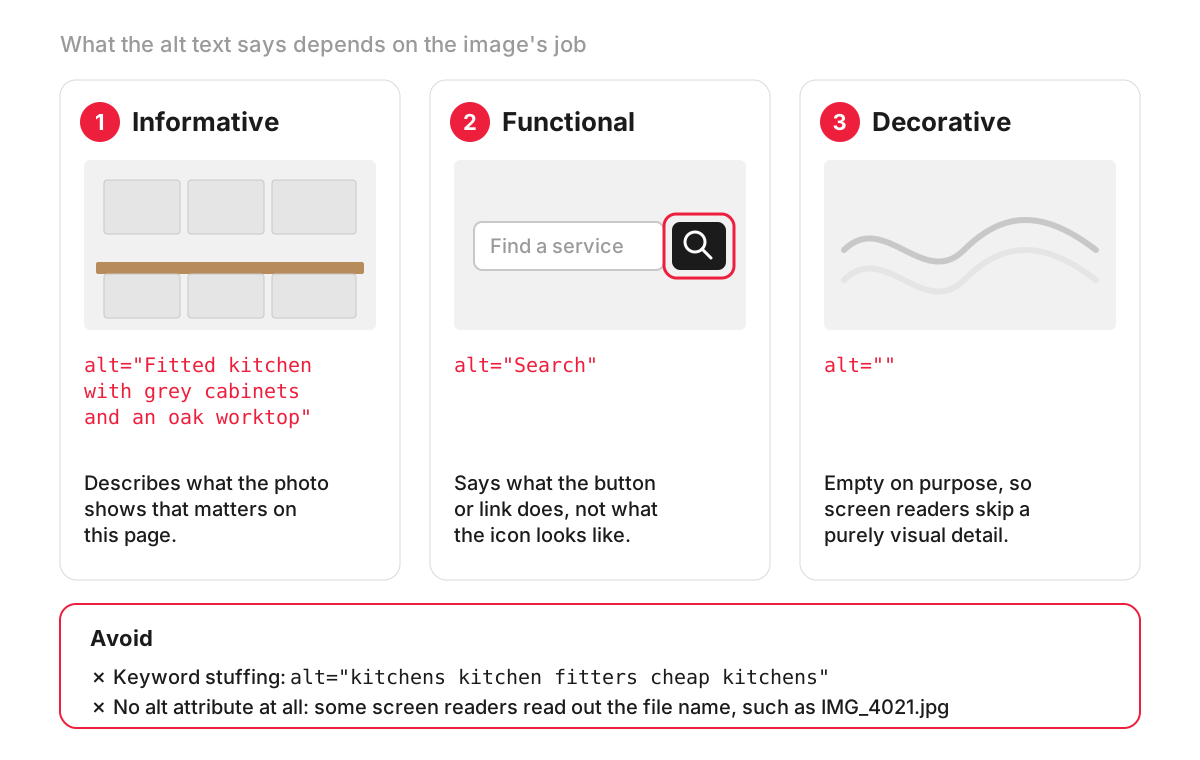
- Informative images, such as photos of your work, products or team. Describe what the image shows that matters on this page, in a sentence or less.
- Functional images, such as an icon used as a button or a logo that links to the home page. Describe the action or destination: “Search”, “Home”, “Download the price list (PDF)”. What the icon looks like is beside the point.
- Images of text, such as a banner with an offer written on it. Put the words from the image in the alt text, unless the same words already appear as real text next to it.
- Decorative images, such as background patterns, dividers and stock photos that add nothing to the content. Give them an empty alt attribute, alt=””. The W3C’s page on decorative images explains that screen readers then skip them, while a missing attribute can make some screen readers read out the file name.
- Complex images, such as charts and diagrams. Use the alt text for a short summary and put the full information in the text of the page, where everyone can read it.
The same photo, different alt text
Context decides what to describe. Take one photo of a kitchen with an oak worktop:
- In a kitchen fitter’s portfolio: “Fitted kitchen with grey cabinets and an oak worktop, Cheltenham”.
- On a timber merchant’s product page for that worktop: “Solid oak worktop, 40 mm thick, with a square edge, installed next to a sink”.
- On a blog post about kitchen trends, as one of many illustrations, a short description may be enough: “Grey and oak kitchen”.
A good test is to read the page aloud, replacing each image with its alt text. If the page still makes sense and nothing important is missing, the alt text is doing its job.
Mistakes that make alt text useless
- Keyword stuffing. Google’s guidance shows a list of repeated keywords as a bad example and warns that it can lead to the site being seen as spam. A keyword belongs in alt text only when it honestly describes the image.
- “Image of” or “picture of”. Screen readers usually announce that an element is an image already, so the phrase only adds words.
- File names and placeholders, such as “IMG_4021” or “banner1”, often added automatically by a CMS or page builder.
- The same alt text on every image, usually the page title or the company name.
- Describing decorative images, which makes screen reader users listen to clutter.
- Repeating the caption word for word, so the same sentence is read twice.
Where to add alt text in your CMS
Most content management systems have an alt text field for every image. In WordPress, the Image block settings have an “Alternative text” field and a “Mark as decorative” option. Alt text added in the Media Library becomes the default whenever that image is inserted, and the block field sets it for one page only. Online shop platforms usually have the same field on each product image.
On a site with hundreds of images, start with the ones that carry information: product photos, photos of your work, diagrams and image links. Decorative images only need the empty attribute.
How we check alt text
Missing, empty and duplicated alt text is one of the checks in our SEO audit of a website. For a small website the audit costs £370. You receive a report, a prioritised task list and a presentation call where we go through the findings and answer your questions. Writing or correcting alt text across the site is a separate piece of work.
FAQ
Can anyone see alt text?
Not usually. Sighted visitors see alt text only when an image fails to load, when it appears in place of the picture. Screen reader users hear it, and search engines read it in the page code. Some browsers show the title attribute when you hover over an image, but that is a different attribute from alt.
How can I tell if an image has alt text?
Right-click the image in Chrome, Edge or Firefox and choose Inspect: the alt attribute appears in the highlighted line of code. In WordPress, open the image in the Media Library and look at the “Alternative text” field. To check a whole site, a crawler such as Screaming Frog lists every image with missing or empty alt text.
What is the difference between alt text and an image caption?
A caption is visible text under the image, written for everyone, and it often adds context the photo cannot show, such as a date or a project name. Alt text replaces the image for people who cannot see it. If an image has a caption, the alt text should describe what the caption does not.
How long should alt text be?
As short as possible while still doing its job. For most photos and buttons, a few words to a sentence is enough. If an image needs a paragraph to explain, such as a chart or a floor plan, write that explanation in the text of the page and keep the alt text to a short summary.